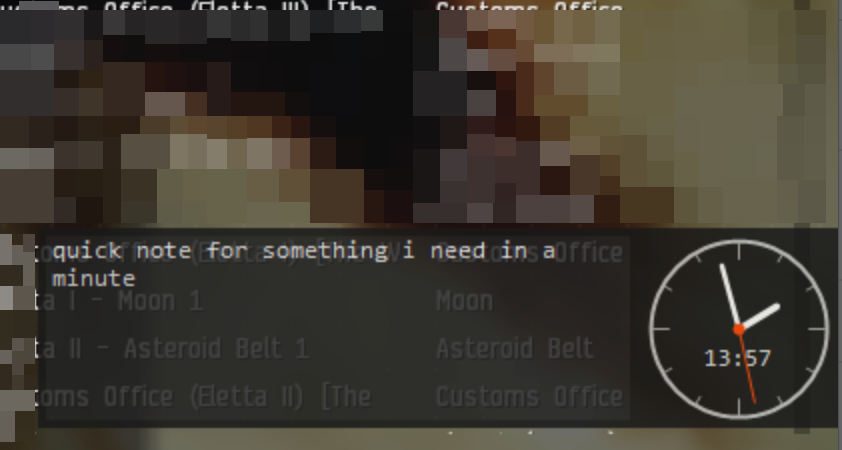
When playing Eve or Trading, the window covers everything.
The taskbar clock is gone, and every time I need to remember something I need to alt-tab out, find whatever place to put a note and forget about it.
Windows widgets are bloated, and most “desktop clock” apps want an installer, a tray full of settings, or a subscription.
not happening! download a single file from Github, start it and you are done. or check out the code here.
Meet Note-Clock
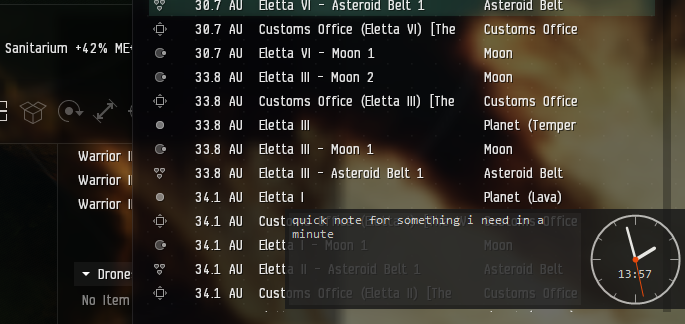
What it does
The idea is simple: a 400×100 pixel window with no frame, no title bar and no taskbar entry, sitting on top of everything else.
- left 300px: a notepad. Click and type, that’s it.
- right 100px: an analog Clock with the digital time in the face. When the window is focused it shows seconds too.
- Transparency from 100% down to 20%, so it doesn’t block what’s behind it.
- Drag it with the right mouse button, anywhere on the window. Left click stays for typing.
- Double-click the clock face and it disappears for 10 seconds. Poor man’s click-through, so you can click whatever is under it. It comes back without stealing your keyboard focus.
Position, transparency and the note text are saved to a NoteClock.json right next to the exe. Close it, reboot, start it again, and your note is still there.
The whole thing is one C# file, compiled with the csc.exe that ships with every Windows install anyway. No Visual Studio, no .NET SDK, no Electron eating 300MB of RAM to show the time.
15 KB. No installer. Zero dollars.
It’s not pretty, but it does exactly one job and stays out of the way. That’s all I want from a desktop tool.
Get it
Grab NoteClock.exe from the Releases page on GitHub and run it. If you want it every time Windows starts, press Win+R, type shell:startup and drop a shortcut there.
The source is in the repo. If you want to change something, edit NoteClock.cs and run build.bat.
Built for speed, size and simplicity, Claude Code spend a minute to clean my junk-code up and make it work better.