Tailscale ships updates about as often as I refill my coffee. That alone would be fine, but on my machines those updates never actually arrive by themselves. Yes, there is an auto-update setting, and yes, there is a “delayed rollout”. The catch: the rollout delay is always longer than the time until the next release, so by the time a version would finally be installed, there is already a newer one waiting in line. The only thing that reliably updates a node is me clicking the button in the admin console. For every single node. Every time.
So let’s just take the decision away from the rollout and update ourselves. (If you have no idea what Tailscale is, I wrote about it in Your own VPN service.)
Linux: boring, as it should be
On Debian or Ubuntu, Tailscale comes from its own apt repository, so it is a normal package update. This only upgrades Tailscale and leaves everything else alone:
sudo tailscale update --yes

sudo apt update

sudo tailscale update --yes
sudo apt install --only-upgrade tailscale
Windows: of course it’s more complicated
Windows has no package manager that anyone actually trusts to run unattended, so we use the Task Scheduler. The task below runs tailscale update --yes as SYSTEM two minutes after every boot and once a day at 4 am. If the machine was off at 4 am, it catches up as soon as it is back, it only runs with a network connection, it does not care about battery mode, and it gets killed if it hangs for more than 15 minutes.
Open PowerShell as Administrator (right-click the Start button → Terminal (Admin) or Windows PowerShell (Admin)) and paste this:
$action    = New-ScheduledTaskAction -Execute "C:\Program Files\Tailscale\tailscale.exe" -Argument "update --yes"

$atBoot    = New-ScheduledTaskTrigger -AtStartup; $atBoot.Delay = "PT2M"

$daily     = New-ScheduledTaskTrigger -Daily -At 4am

$principal = New-ScheduledTaskPrincipal -UserId "SYSTEM" -LogonType ServiceAccount -RunLevel Highest

$settings  = New-ScheduledTaskSettingsSet -StartWhenAvailable -RunOnlyIfNetworkAvailable -AllowStartIfOnBatteries -DontStopIfGoingOnBatteries -ExecutionTimeLimit (New-TimeSpan -Minutes 15)

Register-ScheduledTask -TaskName "Tailscale Update" -Action $action -Trigger $atBoot,$daily -Principal $principal -Settings $settings -Description "Install the latest Tailscale stable release"
That’s it, you are good.
Check that it worked
The quick way, in the same PowerShell window:
(Get-ScheduledTask -TaskName "Tailscale Update").Triggers | Select-Object StartBoundary, Delay
You should see two lines: the boot trigger with a delay of PT2M, and the daily one with today’s date at 04:00.
Don’t want to wait until tomorrow? Run it once right now and look at the result. A LastTaskResult of 0 means it ran fine (also when there was nothing to update):
Start-ScheduledTask -TaskName "Tailscale Update"

Get-ScheduledTaskInfo -TaskName "Tailscale Update" | Select-Object LastRunTime, LastTaskResult
The clicky way, if you don’t trust PowerShell (fair):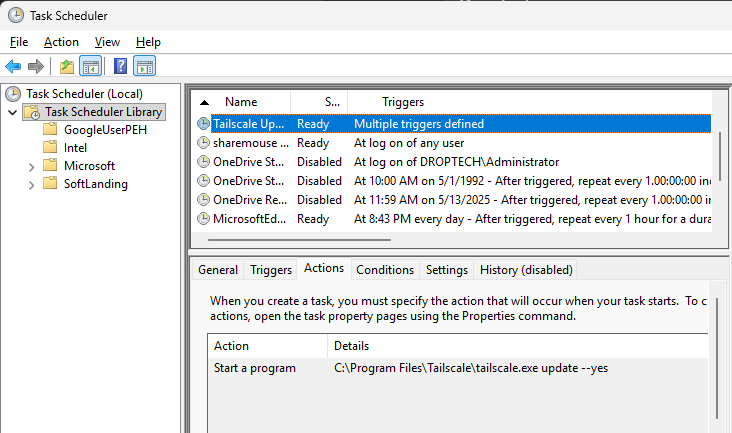
- Press
Win+R, typetaskschd.mscand hit Enter. Or open Start, type Task Scheduler and open it. - Click Task Scheduler Library on the left.
- Find Tailscale Update in the list. The Triggers tab shows “At system startup” (delayed 2 minutes) and “Daily at 4:00 AM”.
- Right-click it → Run to test it, then check the Last Run Result column: “The operation completed successfully. (0x0)” is what you want.
Changed your mind?
Unregister-ScheduledTask -TaskName "Tailscale Update" -Confirm:$false
Now go refill that coffee. By the time you are back there is probably a new Tailscale version, and this time it will actually be installed.